
The stellar 1Life Dev Team released AMAZING features this month to make your experience even better!
1. 1Life Software
We’ve released a new version of our software, allowing web-administrators to set a list of users to watch form template subscriptions.
To do so, follow these steps:
- In the web-tool, open the form template you’d like to watch and add users to be notified.
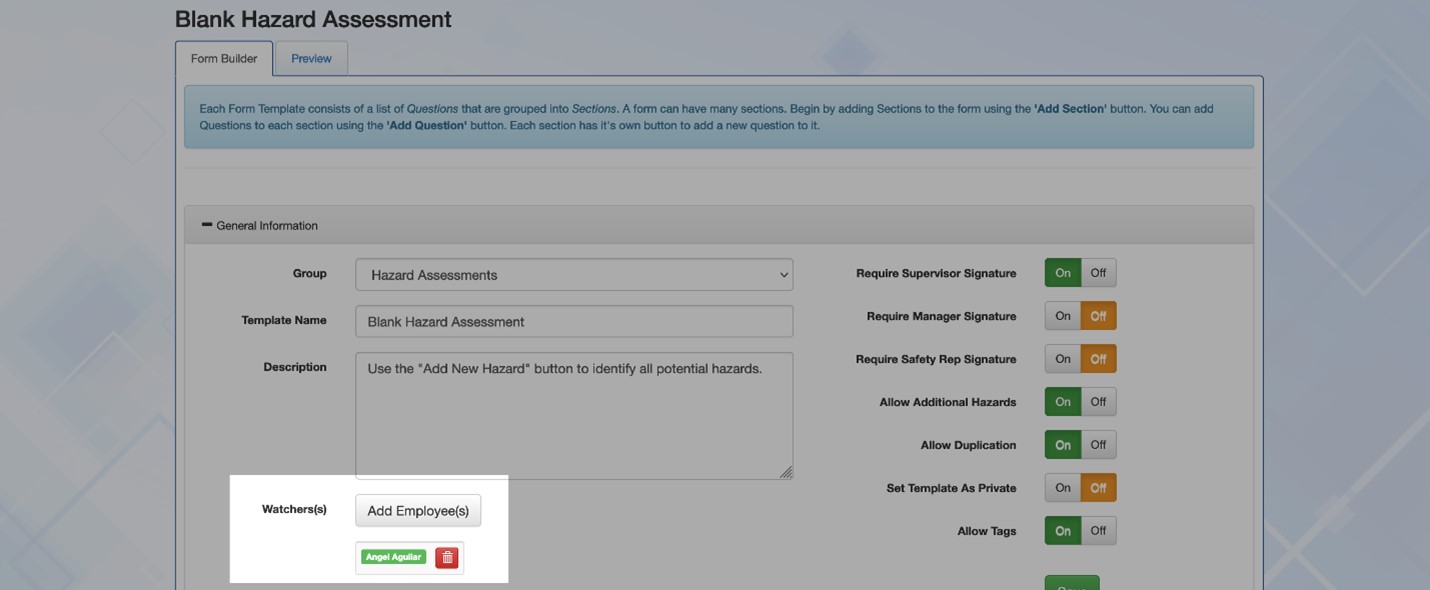
- When a user submits a form using this template, you’ll automatically receive an email notifying all the users attached to this template!
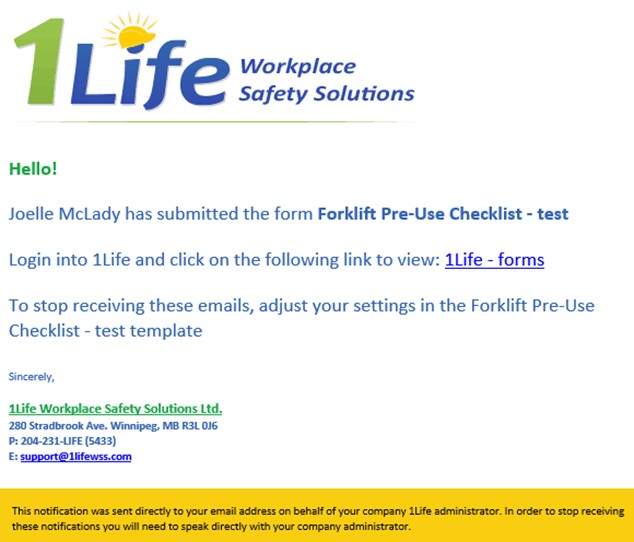
Please note:
- You will NOT receive this email if you submitted this form yourself (unless another subscriber uses the same email address as you)
- This only affects new form submissions from mobile devices
- Updating/reviewing a form won’t trigger the email
- Forms submitted through Scheduler won’t trigger the email
Further updates to the software include:
- We’ve fixed an issue that would allow a web administrator to edit a user to give them a duplicate username. Usernames have to be unique across all our applications.
- We’ve fixed an issue that would show an error when trying to export a training record report with a specific “recertification date”.
- We’ve fixed an error that would allow web-administrators from renaming a label as “blank” (no name).
- We’ve fixed a bug with form filters that would render inaccurate lists based on the form templates and/or projects.
- We’ve fixed an issue that would display inspection items and common hazards as “unchecked” (or “satisfactory”), even with unresolved corrective actions attached to them.
- This fix is retroactive and applies:
- On the web tool when looking at your form instance details
- On the web tool when downloading a form as a PDF
- On the mobile app when sharing a form via email
- This fix is retroactive and applies:
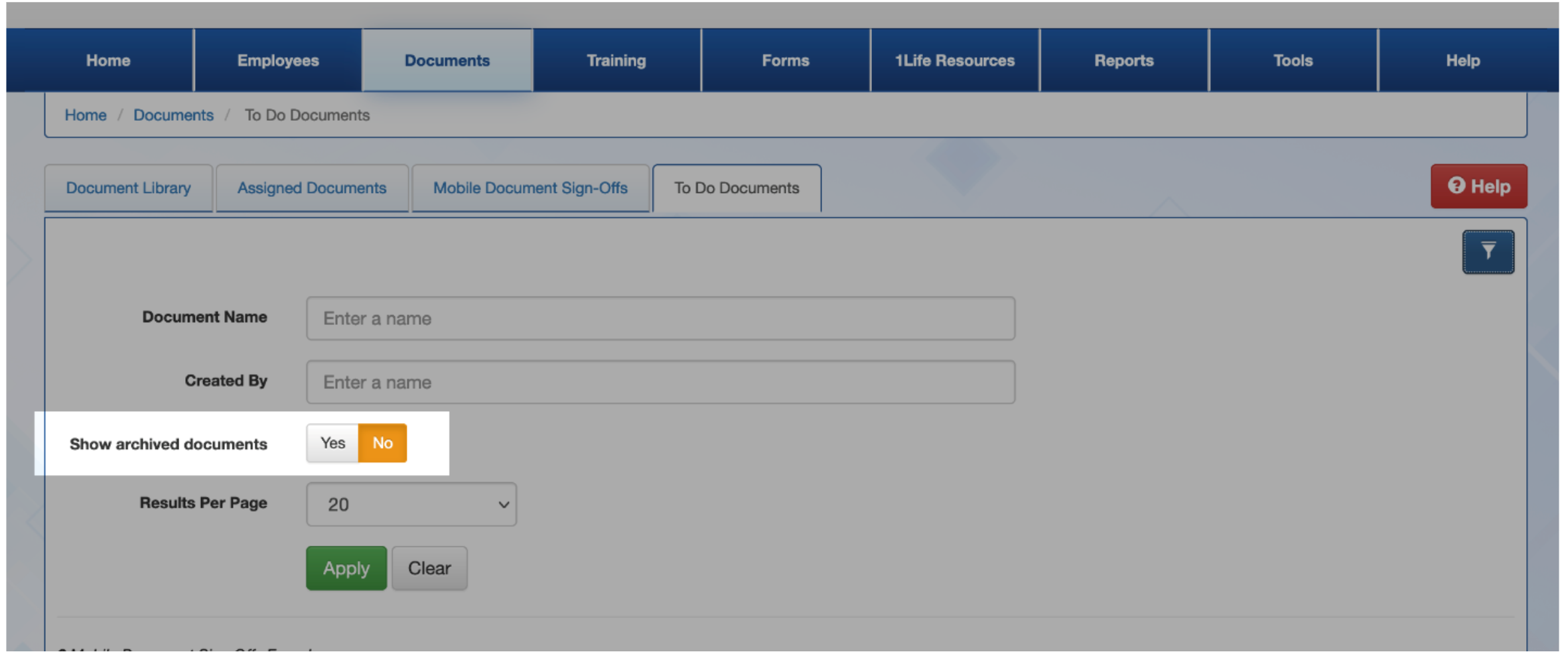
- Web administrators are now able to archive To Do documents (when looking at the document, select the “Archive/Un-archive” button as below)
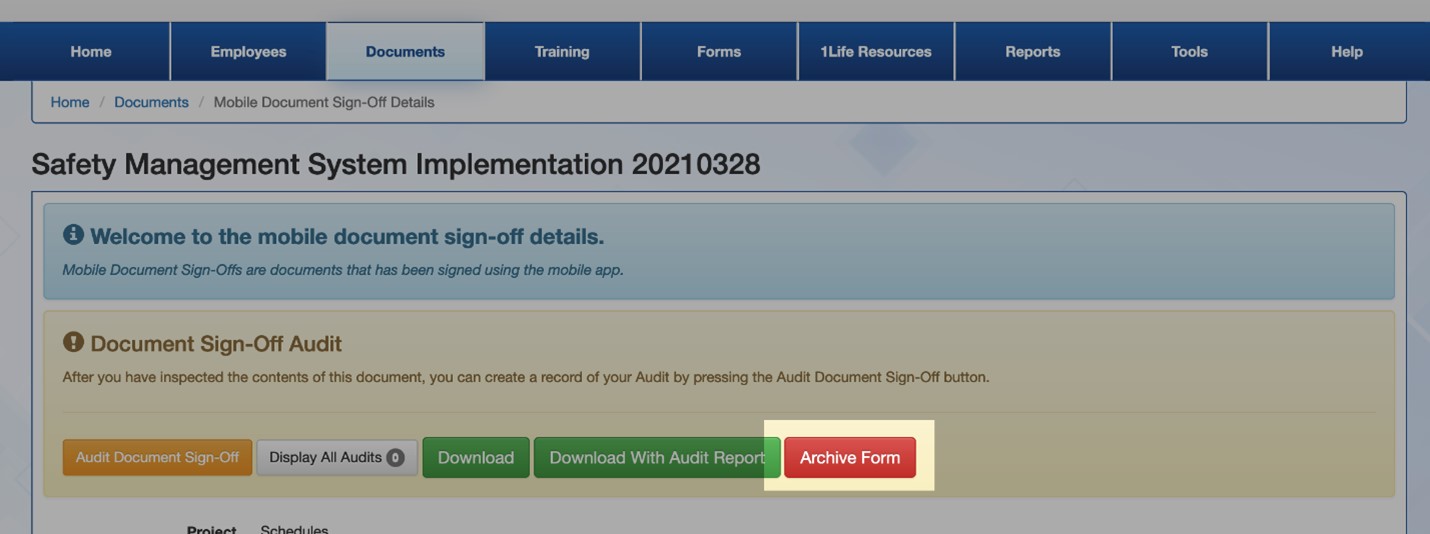
- When looking at your list of To Do documents, archived documents are filtered out by default (hidden); you can reveal them using the filters.
- Note that:
- Archived To Do documents aren’t sent down to mobile devices (however, if it was already sent, it will remain there).
- Our servers are ignoring changes made to archived To Do documents from mobile devices (this will help reducing the synchronization payload).
- There is currently no way to archive multiple To Do documents at once. If you need it for any reason, please reach out to client success and we will make sure it’s done via script!
2. 1Life – Learning Management System (LMS)
We’ve released a new version of the LMS, bringing the following changes:
- We now support wallet card certificates!
- When editing a course, you can set a custom wallet card description.
- When completing a course, you can download both a regular certificate and the wallet card version.
- We’ve added a new login screen that allows you to login into the Learning Management Platform without going through 1Life web tool:
- You can log in at the following URL: https://app.mysafetyassistant.ca/mysafetyapp/lms/login
- If you are already logged in, it will take you to your home screen.
- You can now switch between web administrator and employee view from the main menu, allowing web admins to make the switch to easily take courses.
- You can log out directly from the menu
- Note that the login will automatically detect if you’re a web administrator or a student (employee) and provide you with the appropriate screen.
- We’ve removed the “expired course report” tab.
- We’ve updated the report tab and how “expired” courses are listed: the status of an employee’s course is expired if:
- Their last record is expired, and they didn’t complete a new course.
- Their last record is expired, and they failed to re-complete a new one.
- Their last record is expired, and they are currently taking the course again (in-progress).
This should help managers and supervisors to track “employees requiring training”.
3. 1Life – Scheduler
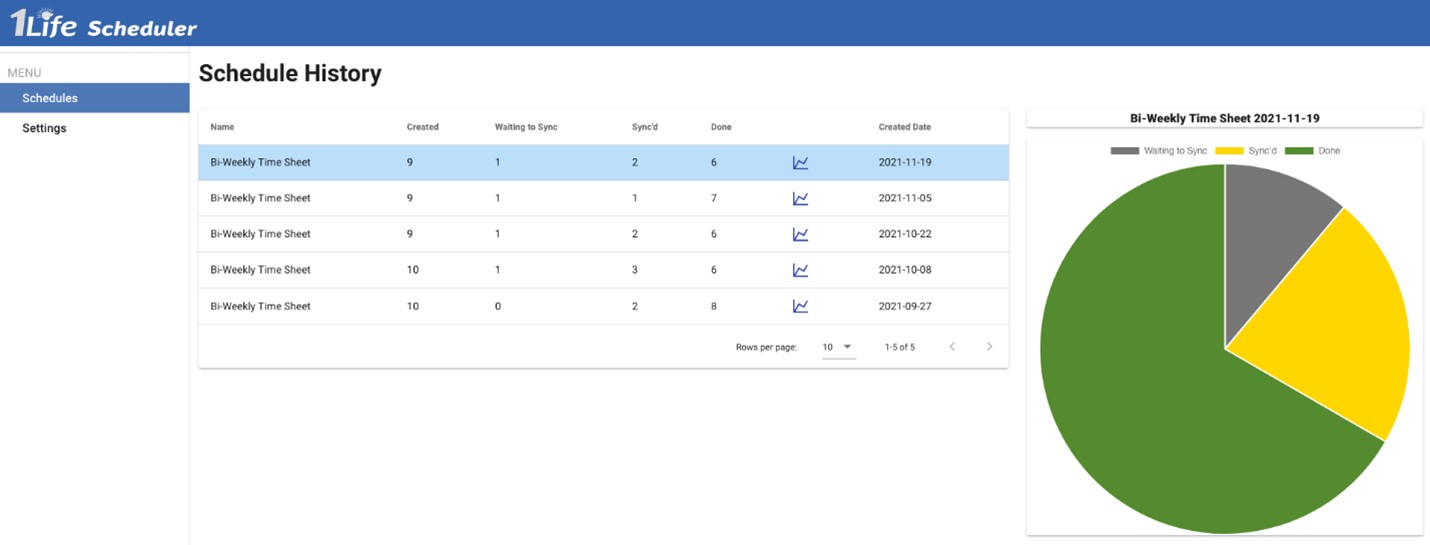
- In the schedule historical list, we’ve replaced the “waiting for sync” pie color to gray (so that it matches the dashboard application’s theme)
- We’ve replaced several terms in the schedule creation process to make it more intuitive:
- The “time to run” has been replaced with “scheduled time”
- The “Employees” title has been replaced with “Add employees”
- The “Templates” title has been replaced with “Add templates”
- The “Documents” title has been replaced with “Add documents”
- The “Email” title has been replaced with “Add email notifications”
- The “Add recipients manually” label has been replaced with “Add third party recipients”
- The “Select users to add as recipients” label has been replaced with “Select employees”
- The “Default project for this schedule” title has been replaced with “Select project for this schedule”